
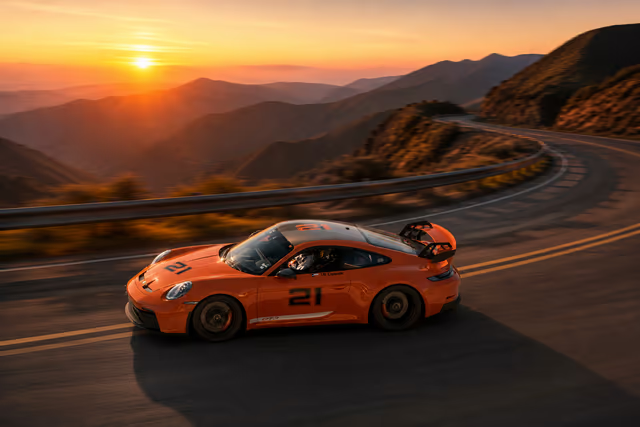
 PrimaGenerata con AI
Editor di immagini AI gratuito
Modifica le foto con semplici istruzioni testuali in pochi secondi: interventi precisi e attenti al contesto con Cinel.
PrimaGenerata con AI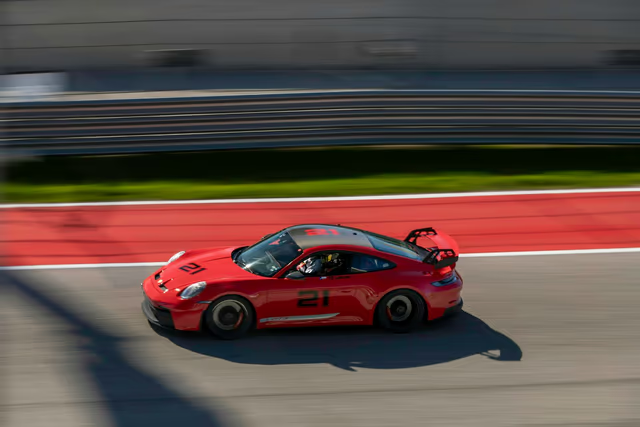
Strumenti più usati
Modifica un dettaglio, rimuovi lo sfondo, prepara una versione più grande o allarga l'inquadratura, partendo dall'immagine che hai già.
Modifica le immagini in pochi secondi
AI Image Edit
Describe the change instead of masking every pixel.
Strumento attualeScontorni puliti, in un attimo
Background Remover
Keep hair, fabric and translucent detail.
Apri strumentoPiù nitide, senza effetto plastica
Image Upscaler
Reconstruct texture instead of only stretching pixels.
Apri strumentoVai oltre l'inquadratura
AI Uncrop
Turn one source into desktop, feed and story crops.
Apri strumentoVetrina
Scopri trasformazioni di immagini quotidiane e guarda come una breve istruzione può cambiare l'inquadratura.
Nuove scene, nuova luce, nuovo stile: la storia resta tua.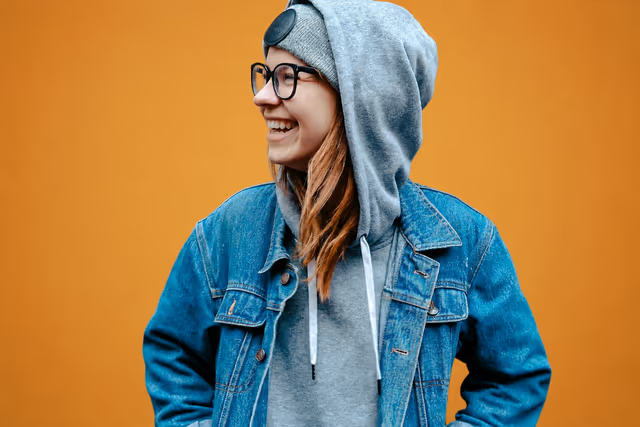 PrimaGenerata con AI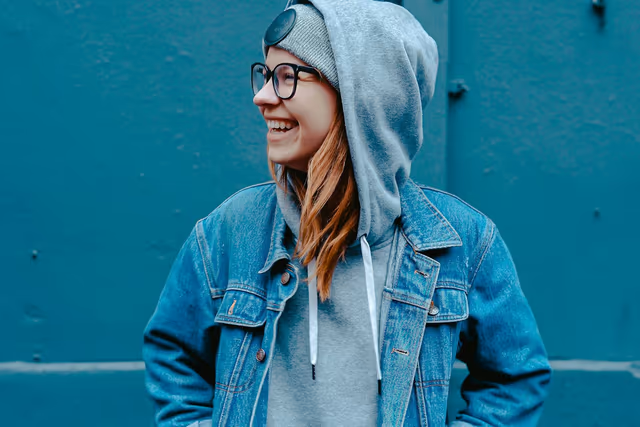
Scrivi il prompt, ottieni l'immagine
Sostituzione dello sfondo
Cambia il colore dello sfondo lasciando identici soggetto, outfit e composizione.
Cambia solo il colore dello sfondo, mantieni la persona e l'outfit
Guarda come modifica CinelUno studio essenziale per le modifiche di tutti i giorni
Cinel mantiene i controlli semplici mentre il modello si occupa delle parti difficili: contesto, bordi, luce e continuità.
Smart editing
Describe the change in one sentence and keep the important parts intact.
Attento al contesto
Cinel follows subjects, surfaces and lighting instead of applying a flat filter.
Fast generation
Preview the idea quickly, then use paid priority for demanding work.
Private by design
Your image workflow stays connected to your account history and controls.
Creative range
Move from realistic edits to illustrated, cinematic and graphic treatments.
La palette di Cinel
Trova un linguaggio visivo per ogni immagine
Realistico quando serve. Espressivo quando vuoi.
RealisticCinematicAnimeOil PaintingGraphicFreehand
Approfondimento e guida pratica
Cosa rende unico Editor di immagini AI gratuito
Un approfondimento tecnico e creativo sulle prestazioni del modello, l’architettura e i flussi di produzione pratici.
Traditional photo editing asks you to select, mask and adjust layer by layer. Cinel's AI image editor asks one question instead: what should be different? Upload a photo, write the change in plain language, such as "make the sky stormy" or "change the jacket to olive green", and the editor rewrites just that part while keeping the person, product and composition you started with. For the jobs that need no prompt at all, three dedicated tools handle cutouts, wider frames and higher resolution.
Key Section
Two kinds of editing in one place
- Prompt edits change the content of the picture: objects, colours, light, style, setting.
- One-click tools change the format of the picture: remove the background, expand the canvas, or enlarge it.
| I want to… | Use |
|---|---|
| Replace the background with a new scene | AI Image Editor (prompt) |
| Get a transparent PNG of the subject | Background Remover |
| Turn a square photo into a 16:9 or 9:16 frame | AI Uncrop |
| Make a small image sharp at 2K or 4K | Image Upscaler |
| Change colour, lighting or style | AI Image Editor (prompt) |
| Make a whole new picture inspired by mine | Image to Image |
Key Section
What prompt editing handles well
- Background replacement: a studio portrait moved to a sunlit street, a product placed on marble.
- Lighting adjustment: soften harsh shadows, add golden-hour warmth, turn day into dusk.
- Colour changes: recolour a dress, a car or a wall without touching anything else.
- Style conversion: Realistic, Cinematic, Anime, Oil Painting, Graphic or Freehand treatments.
- Object edits: remove a stray cup, add a plant, swap a sign's wording.
- Age and appearance: playful age transformations on portraits (use only images you have permission to edit).
Key Section
How to edit a photo on Cinel
- Upload a JPG or PNG of up to 20 MB.
- Describe the change in one sentence and name what must stay the same: "Change only the background to a beach at sunset; keep the person and outfit unchanged."
- Generate and compare before and after.
- Refine with a follow-up instruction, or send the result to Uncrop, the Upscaler or Image to Video.
Key Section
Writing edit instructions that work
- One change per instruction. Stack edits over several rounds rather than in one long sentence.
- Say what to protect. "Keep the face, pose and logo exactly the same" stops unwanted drift.
- Be concrete. "Olive green wool jacket" works better than "a nicer jacket".
- Quote any text you want to appear, e.g. a shop sign reading "OPEN DAILY".
- Check details at full size, especially hands, faces and product labels.
Key Section
What it costs
- Prompt edits run on GPT Image 2 by default: 2 credits per 1K image for members, or 4 credits paid from daily credits.
- Background Remover: 3 credits.
- AI Uncrop: 6 credits.
- Image Upscaler: 9 credits (2×) or 18 credits (4×).
- Daily free use: signed-in users can claim 9 free credits every day. Each of the three tools can be used once per day with them, and the limit applies per tool.
The cost is always shown before you generate. Signed-in edits are private to your account history.
Key Section
Everyday uses
- Product photos cleaned up and placed in seasonal scenes.
- Profile pictures with better light and a tidy background.
- Real-estate photos with a blue sky instead of a grey one.
- Social posts restyled to match a campaign look.
- Old or low-resolution images refreshed for reuse.
L'editing di immagini con AI, spiegato in modo chiaro
01Is the AI image editor free?
You can start without paying. Signed-in users can claim 9 free credits every day, use them for prompt edits, and use the Background Remover, Image Upscaler and AI Uncrop once per day each (counted per tool). Beyond that, edits use credits.
02What file types and sizes can I upload?
The prompt editor accepts JPG and PNG images up to 20 MB. The one-click tools also accept WEBP.
03Will the edit change parts I didn't mention?
The editor aims to keep everything else intact. Saying explicitly what must stay the same helps a lot, and you can rerun with a tighter instruction.
04How is this different from Image to Image?
The editor changes one thing in your existing photo. Image to Image creates a new picture that is only inspired by your reference.
05Can I remove a background and add a new one?
Yes. Ask the editor for a new background directly, or use the Background Remover for a transparent PNG and design the backdrop yourself.
06Can I edit photos of other people?
Only with their permission, and never to mislead or harass. Cinel's Acceptable Use policy applies to every edit.
La tua prossima immagine ti aspetta
Scopri i piani